Copy & Paste
Writage can paste raw Markdown text from the clipboard into Word as formatted content, and copy selected Word content to the clipboard as Markdown text.
Paste Markdown into Word
If you have Markdown text on the clipboard — from an AI assistant, a text editor, a GitHub page, or anywhere else — you can paste it directly into Word as formatted content.
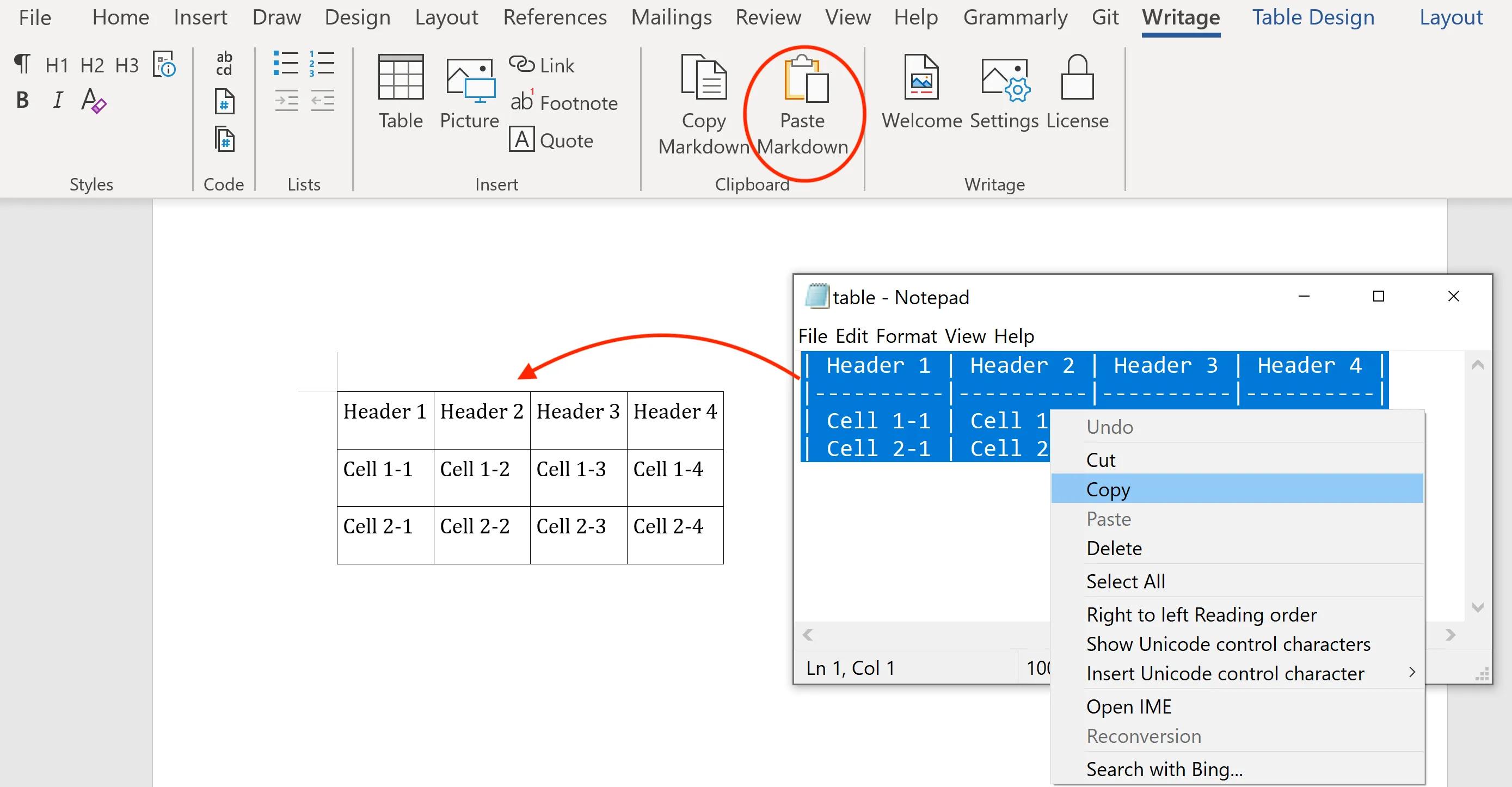
- Copy Markdown text to the clipboard from any source.
- Open (or create) a document in Microsoft Word.
- Click the Paste Markdown button on the Writage tab.
- The Markdown is converted and inserted into the document with all styles applied.
Copy as Markdown from Word
To copy selected content from Word and paste it as Markdown into a text editor or any other tool:
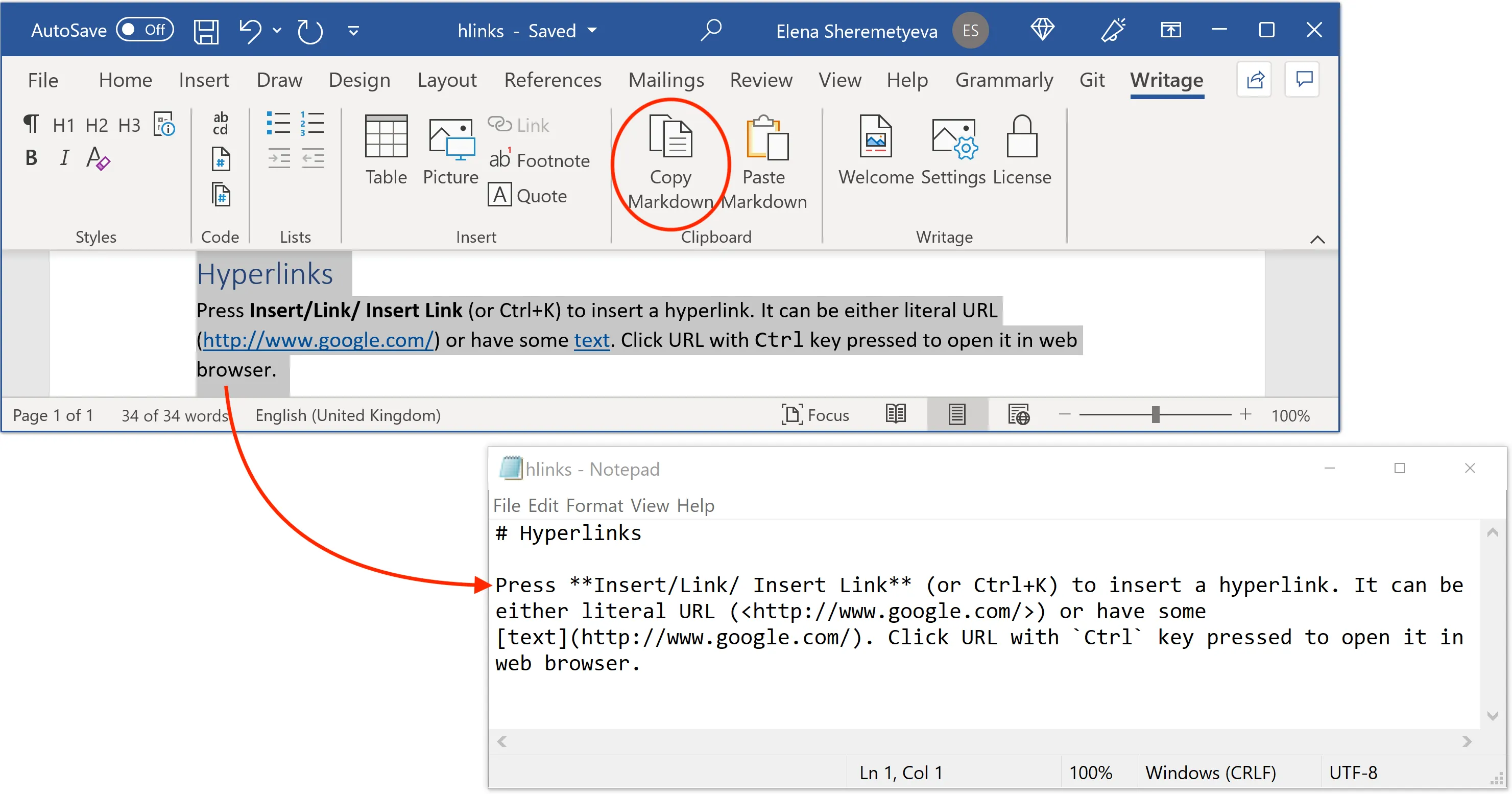
- Select the text you want to copy in your Word document.
- Click the Copy Markdown button on the Writage tab.
- Open your Markdown file or text editor and paste with Ctrl+V (Windows) or Cmd+V (macOS).
- The text is inserted as CommonMark Markdown syntax.
Using with AI assistants
The most common use case for clipboard paste is copying responses from AI assistants. See the dedicated guides for step-by-step instructions: