Custom Styles
Writage provides the ability to change the default styles used when opening a Markdown document in Word, so your documents match your own formatting requirements.
To do this, you create a custom Writage style set in Word’s Design tab. Once saved, this style set is applied automatically every time you open a Markdown file.
How to create a custom styles set on Windows
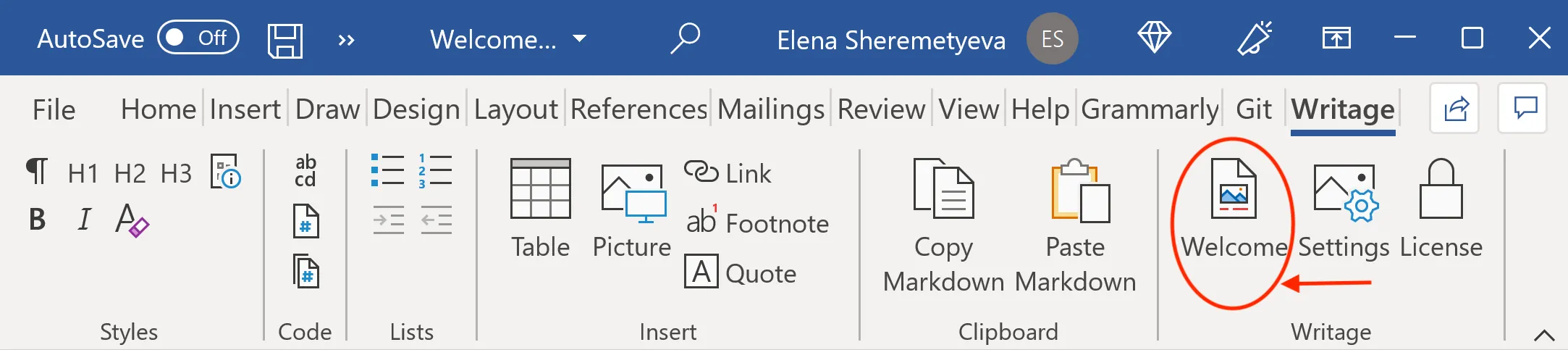
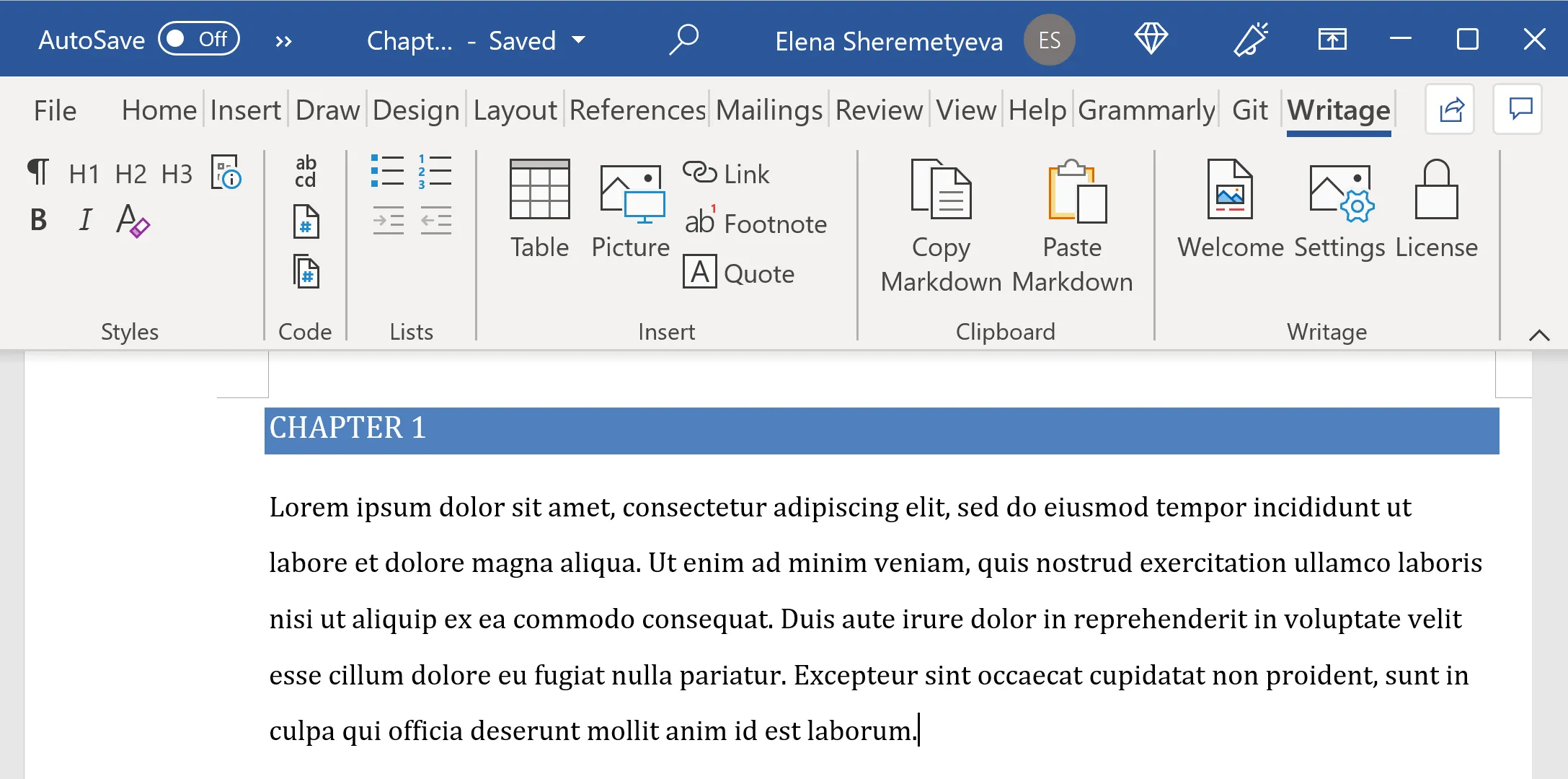
- Launch Microsoft Word and open the Welcome document by clicking the Welcome button on the Writage ribbon. This document contains all the styles that Writage uses for Markdown documents.
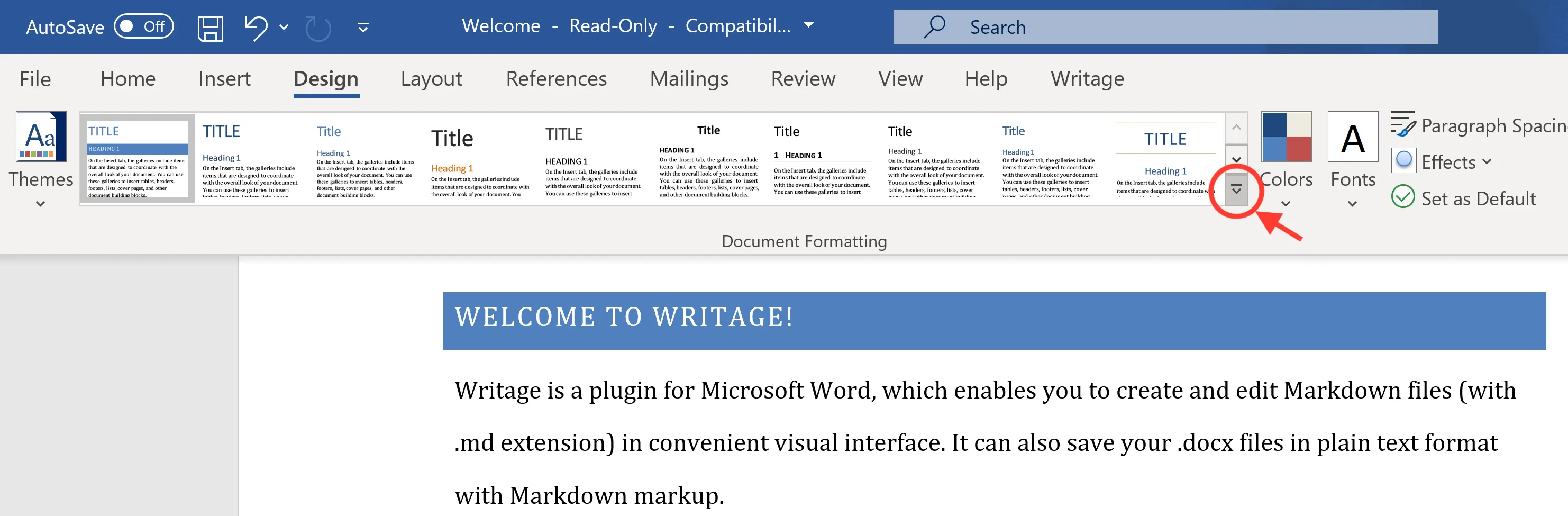
- Make the necessary changes to the styles, then open the Design tab and click the dropdown button in the bottom-right corner of the Document Formatting group.
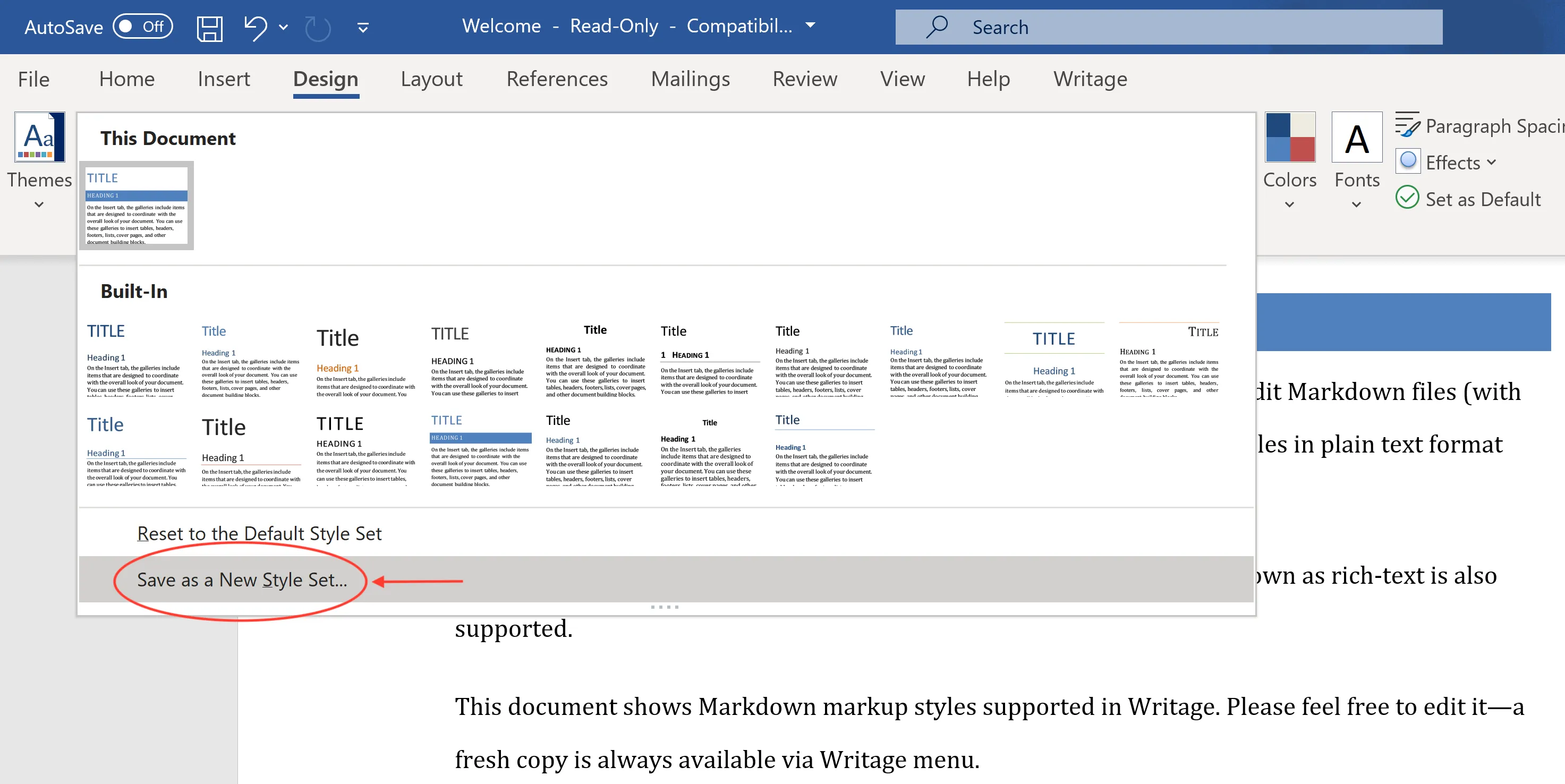
- Choose Save as a New Style Set.
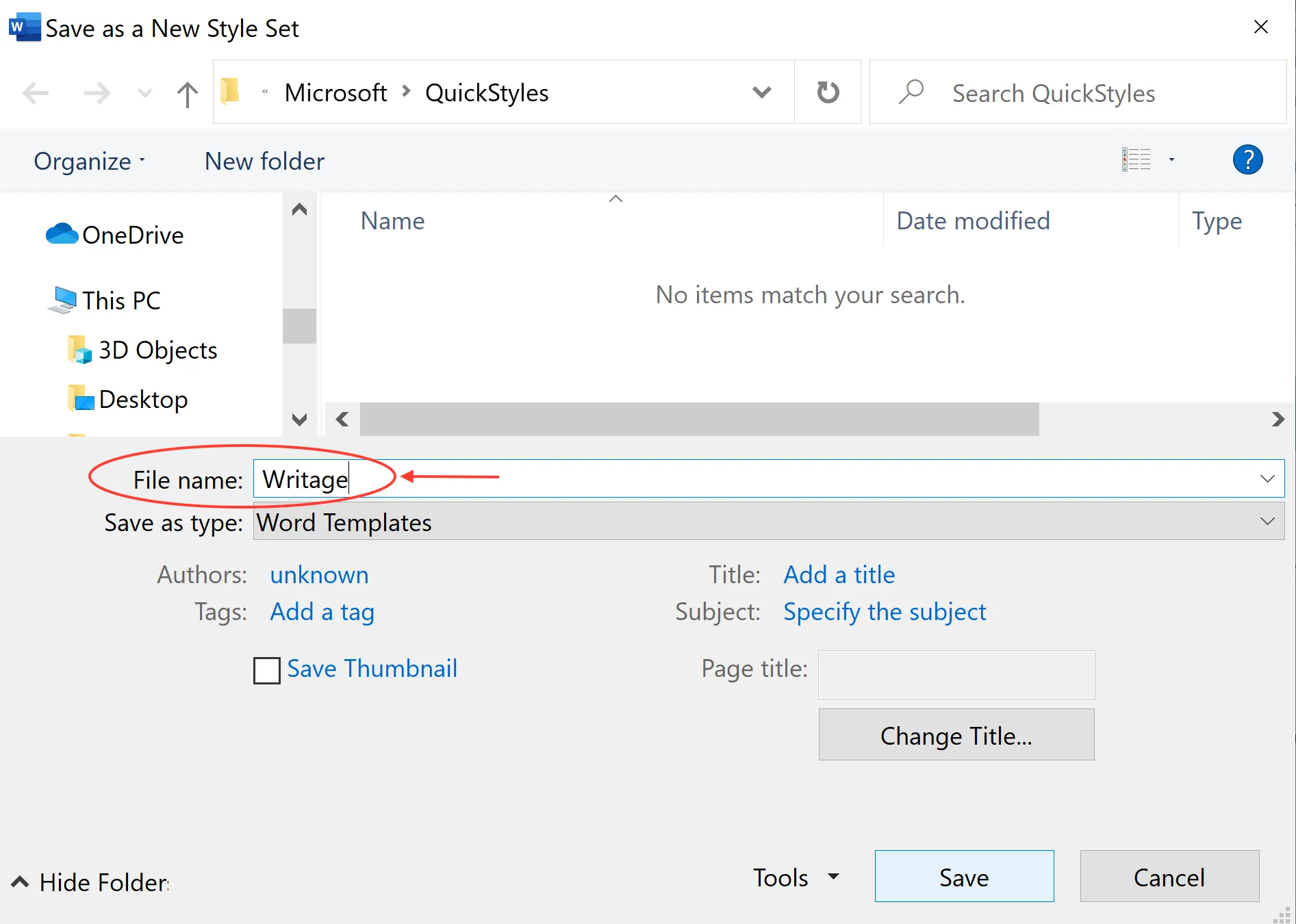
- In the dialog that appears, save the new style set with the name Writage and click Save.
- The Writage style set will now appear in the Custom section of the Style Sets list.
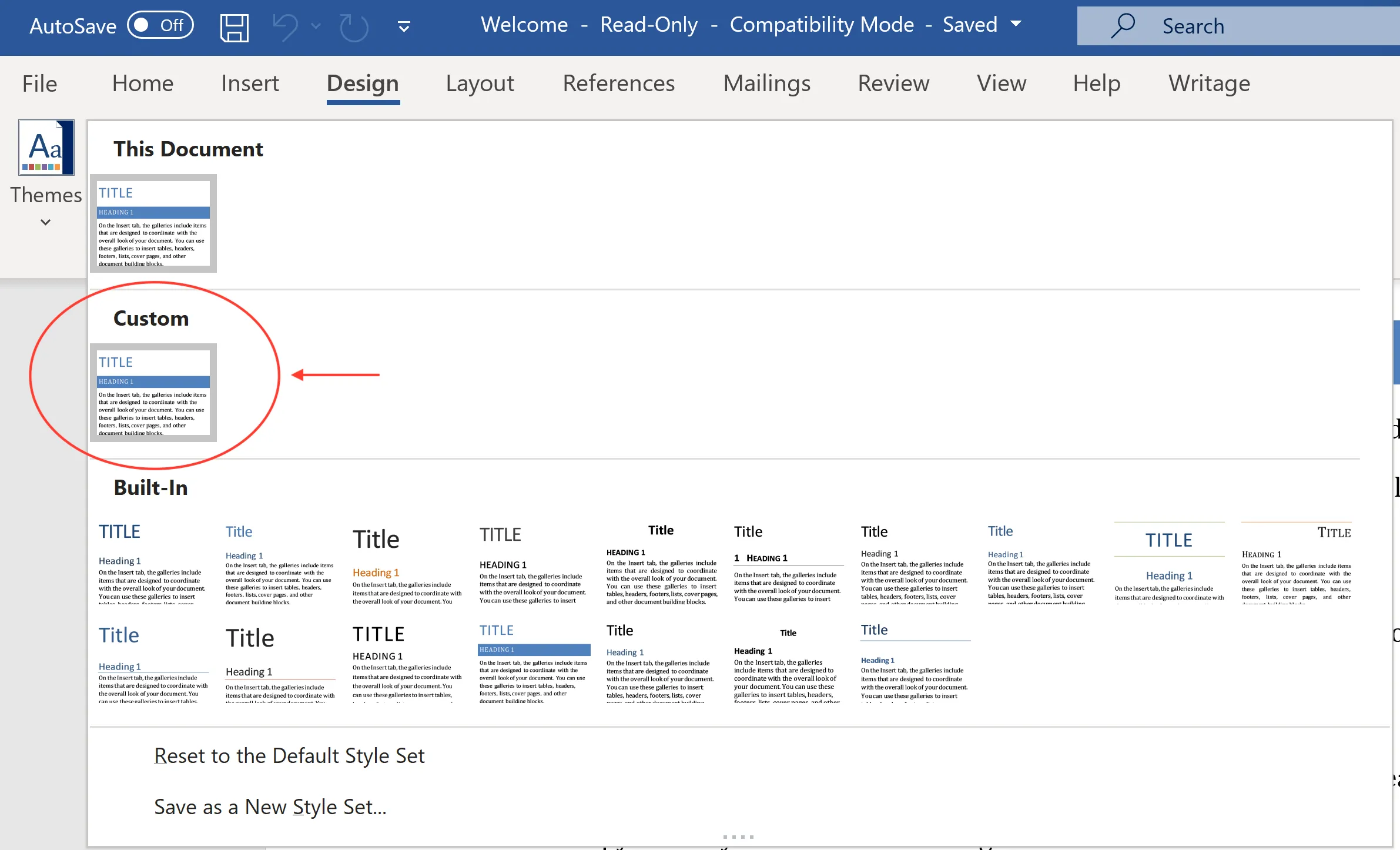
- All Markdown documents opened with Writage will now use your custom style set.
How to create a custom styles set on macOS
-
Launch Microsoft Word and open the Welcome document by clicking the Welcome button on the Writage ribbon. This document contains all the styles that Writage uses for Markdown documents.
-
Make the necessary changes to the styles.
-
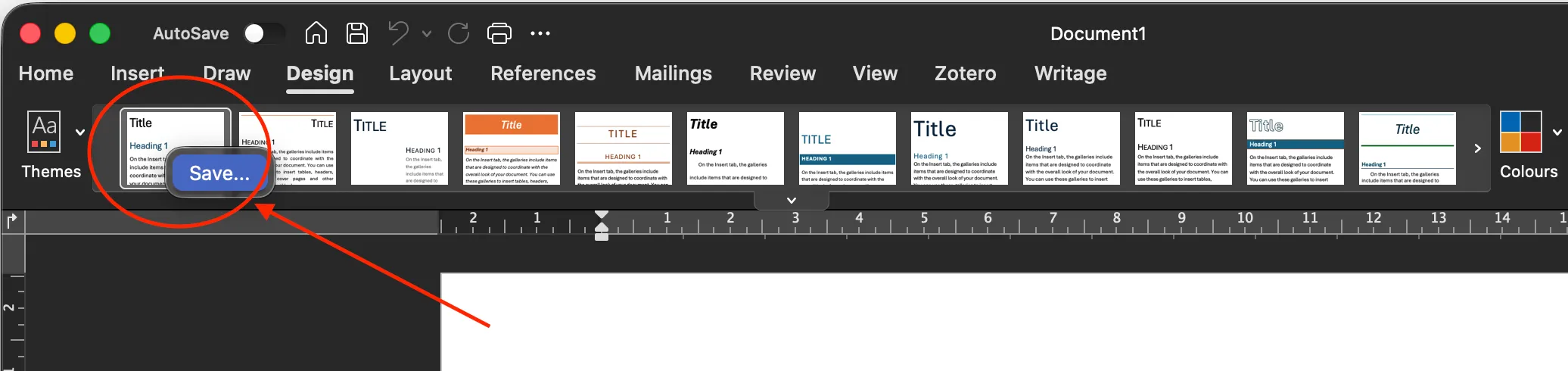
Open the Design tab and right-click the leftmost design in the Document Formatting gallery — its tooltip reads This Document’s Style Set.
-
Choose Save. In the dialog that appears, type the full name Writage.dotx — including the
.dotxextension, as Word for Mac will not add it automatically — and confirm. -
All Markdown documents opened with Writage will now use your custom style set.
How to delete a custom styles set
To return to the default Writage styles, delete the custom Writage style set:
- Open the Design tab and select the Writage style set in the Custom section.
- Right-click on it and choose Delete.
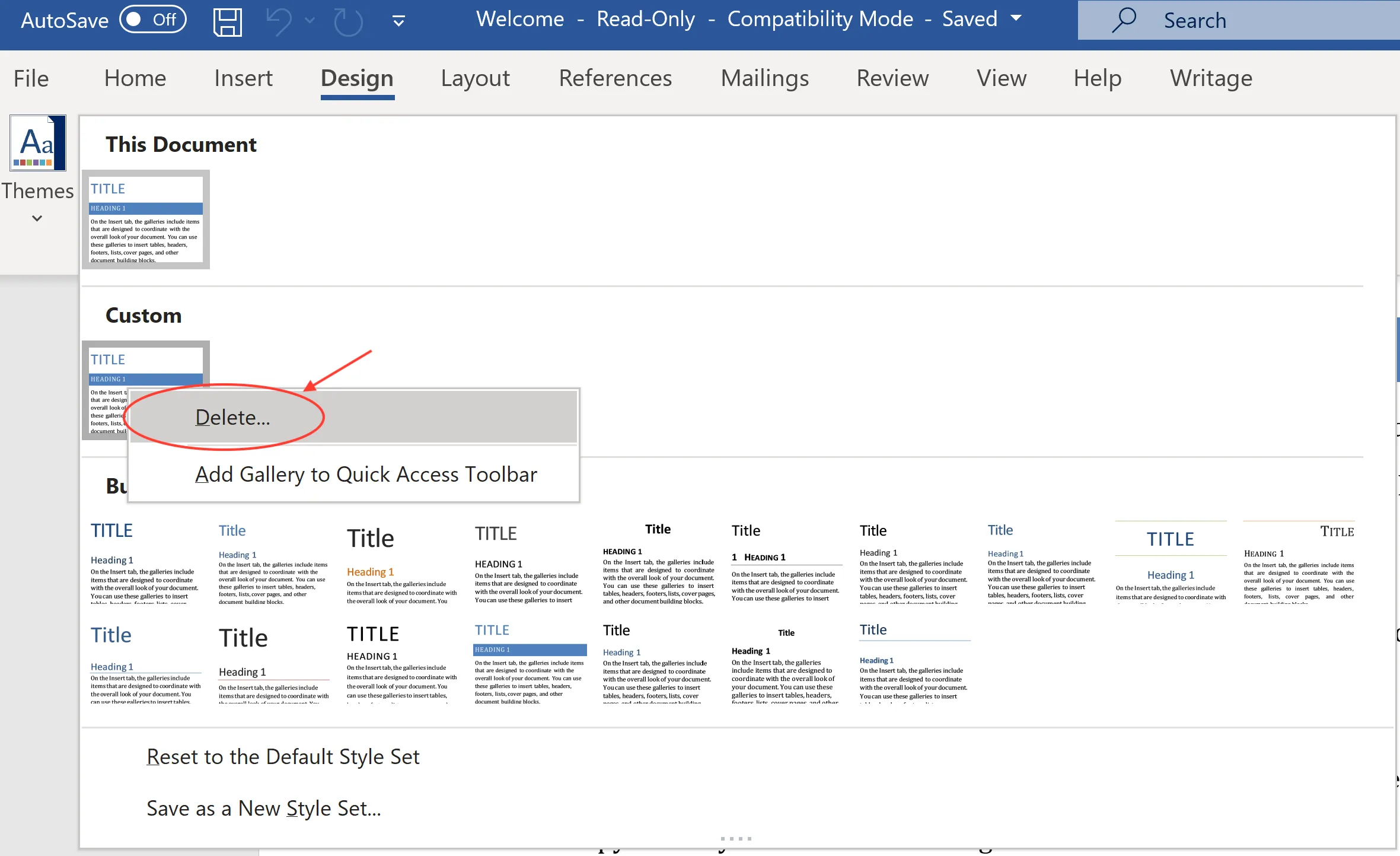
- Confirm by clicking Yes.
- The Writage style set is removed and documents will open with the default styles.