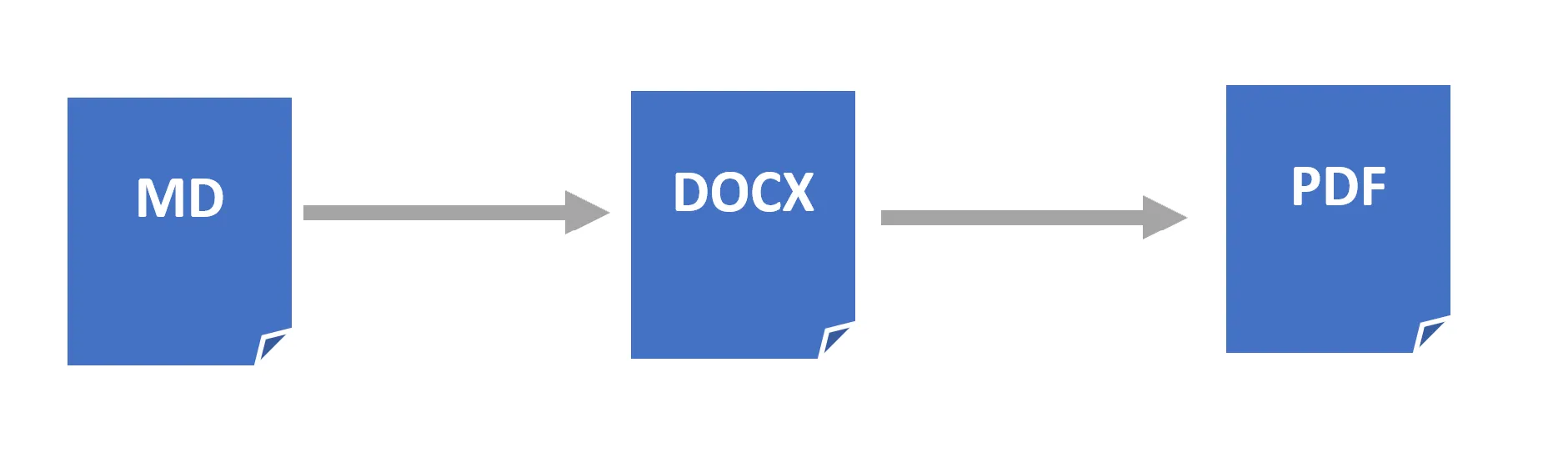
Open & Save Files
Windows and macOS differences
On Windows, Markdown is registered as a file type, so you can open and save Markdown files using Word’s standard File → Open and File → Save As dialogs.
On macOS, Word does not support Markdown as a file type. Use the Open Markdown and Save As Markdown buttons on the Writage ribbon tab instead.
Open a Markdown file
On receiving a Markdown document from another person or downloading one from the web, you can open it directly in Word — no additional software required.
Windows:
- Launch Microsoft Word.

- Choose File → Open and select the Markdown file. Or double-click on a
.mdfile in File Explorer. - The file will open in Word with all formatting applied.
macOS:
- Launch Microsoft Word.
- Click the Open Markdown button on the Writage ribbon tab.
- Select the Markdown file and click Open.
Convert a Word document to Markdown
If you receive a DOCX file and want to continue working with it as Markdown:
Windows:
- Open an existing DOCX file (or create a new one) in Microsoft Word.
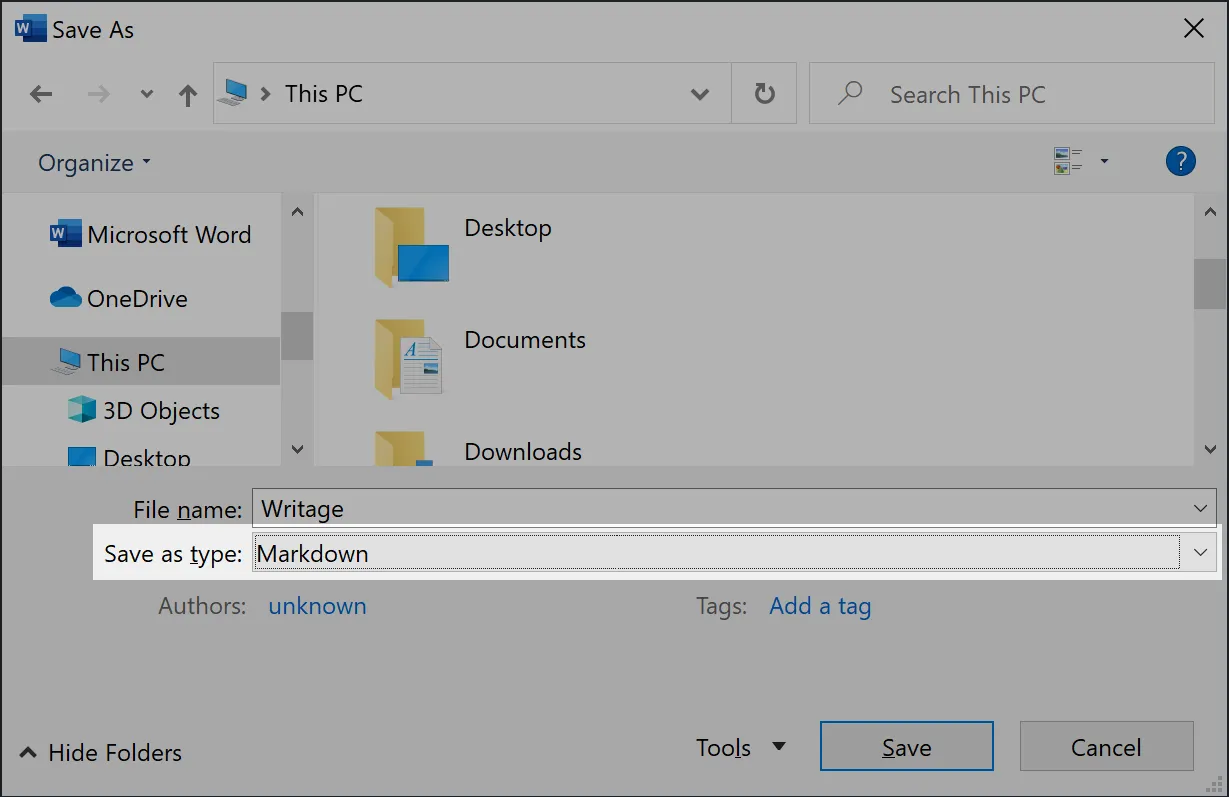
- Choose File → Save As and select Markdown from the Save as type field.
macOS:
- Open an existing DOCX file (or create a new one) in Microsoft Word.
- Click the Save As Markdown button on the Writage ribbon tab.
Images embedded in the document are automatically saved to a media/ folder in the same directory as the Markdown file. You can change the folder name in Settings.
Convert a Markdown file to DOCX
To share a Markdown file with someone who uses Word, or to use Word’s formatting and layout tools:
- Open an existing Markdown file in Microsoft Word (using the steps above).
- Choose File → Save As and select Word Document (*.docx) from the Save as type field.
This works the same on Windows and macOS.
Export a Markdown file to PDF
To convert a Markdown file to PDF, open it in Word and use Word’s built-in export:
- Open your Markdown file in Microsoft Word.
- Choose File → Export and follow the instructions.