Settings
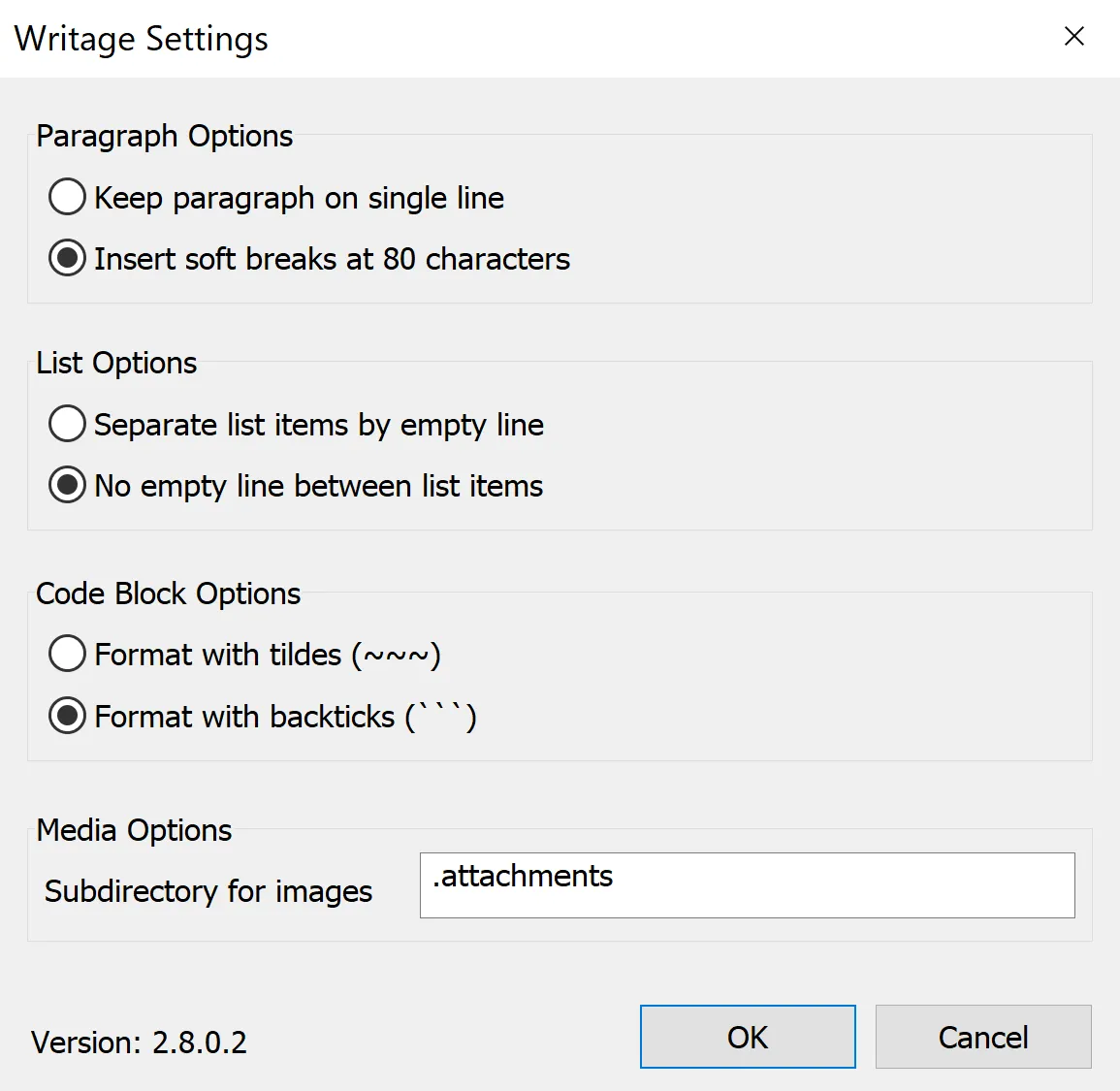
Writage implements the CommonMark standard, but different Markdown tools and workflows have different expectations for how Markdown should be formatted. The Settings dialog lets you tailor the output to match your requirements.
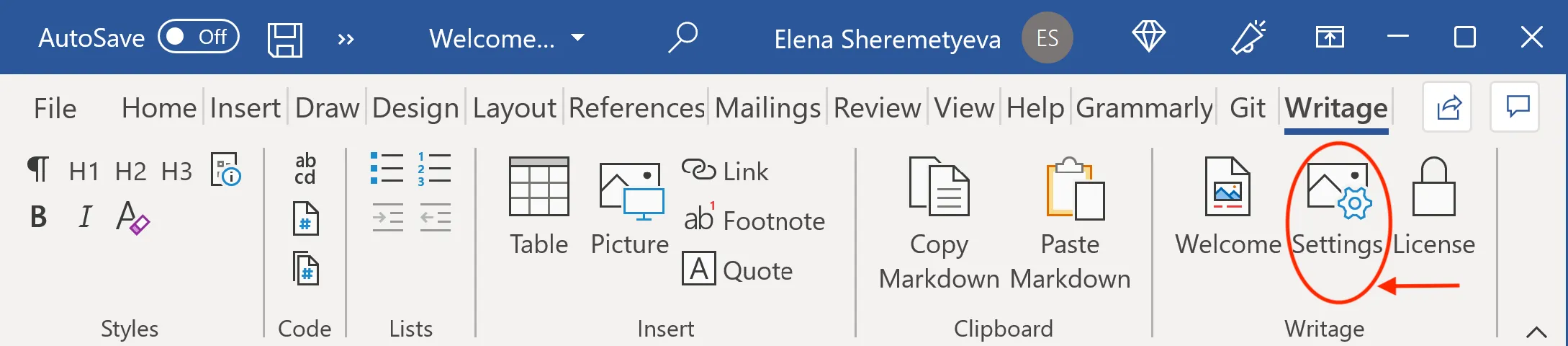
Open Settings by clicking the Settings button on the Writage tab.
Paragraph options
By default, Writage inserts soft line breaks at 80 characters when converting a DOCX document to Markdown. This makes the raw Markdown easier to read in a plain text editor.
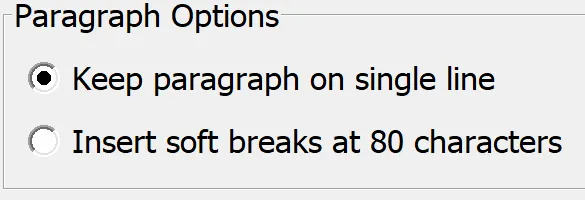
If you prefer to keep each paragraph as a single unbroken line (for example, when your Markdown processor or version control diff requires it), select Keep paragraph on single line.
List options
By default, Writage inserts an empty line between list items. This ensures that lists with multi-paragraph items and lists with single-line items look consistent.
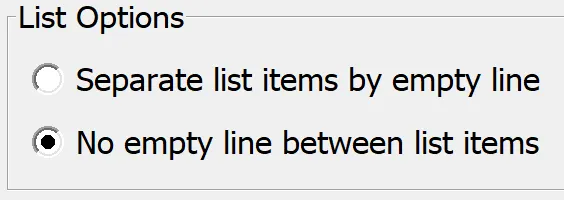
If you want compact lists with no blank lines between items, select No empty lines between list items.
Indent options
Controls the indentation width used for nested list items and continuation paragraphs.
- Standard (4 spaces) — the default; compatible with most Markdown processors.
- Compact (2 spaces) — use this if your Markdown processor or style guide requires 2-space indentation.
Code block options
Code blocks in Markdown can be fenced with three backticks (```) or three tildes (~~~).
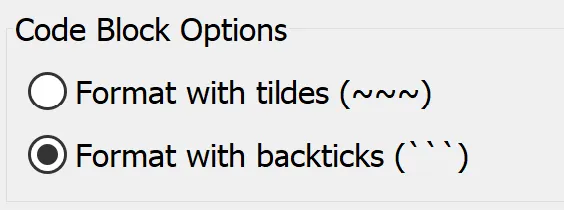
Writage defaults to backticks. Select Format with tildes (~~~) if your workflow requires them.
Preserve HTML
When enabled, raw HTML blocks and inline HTML in a Markdown file are preserved during conversion — they are not stripped or escaped.
This is useful if you work with Markdown files that embed HTML elements such as <details>, <video>, or custom <div> containers. When disabled (the default), raw HTML is not included in the content.
Media options
Writage stores extracted images in a media/ folder in the same directory as the document.
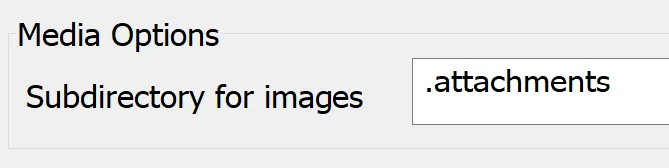
If your workflow requires a different folder name, enter it in the Media folder field. The new name will be used for all subsequent conversions.
Citation style
Controls how citations in Markdown are rendered when converting to DOCX.
Available styles: None, APA (7th edition), IEEE, MLA (9th edition), Vancouver, Harvard, ACS, AMA, ISO 690 (author-date).
When set to None, citation syntax is passed through as-is. When any other style is selected, citations are rendered using the chosen style and a bibliography section is appended to the document.
A bibliography file (references.bib or references.json) must be present in the same directory as the Markdown file. See Citations for full details.