Using with ChatGPT
You can copy content from ChatGPT and paste it into Word as formatted text using Writage. There are two ways to copy from ChatGPT.
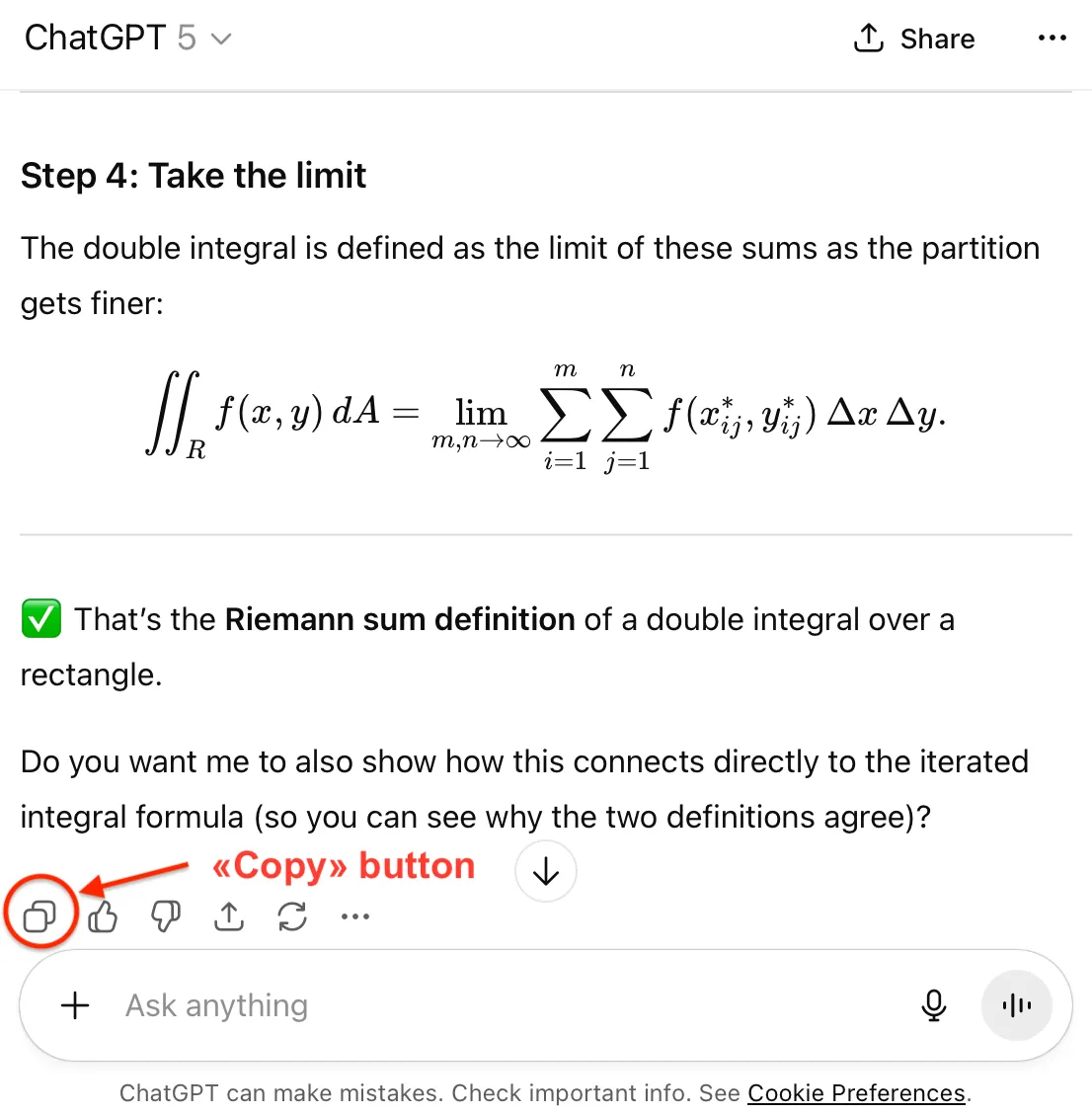
Method 1: Standard “Copy” button
- Enter your prompt in ChatGPT and wait for the response.
- Hold down the Alt key (Windows) or the Option key (macOS), then click the Copy button below the response.
- Open your Word document (or create a new one).
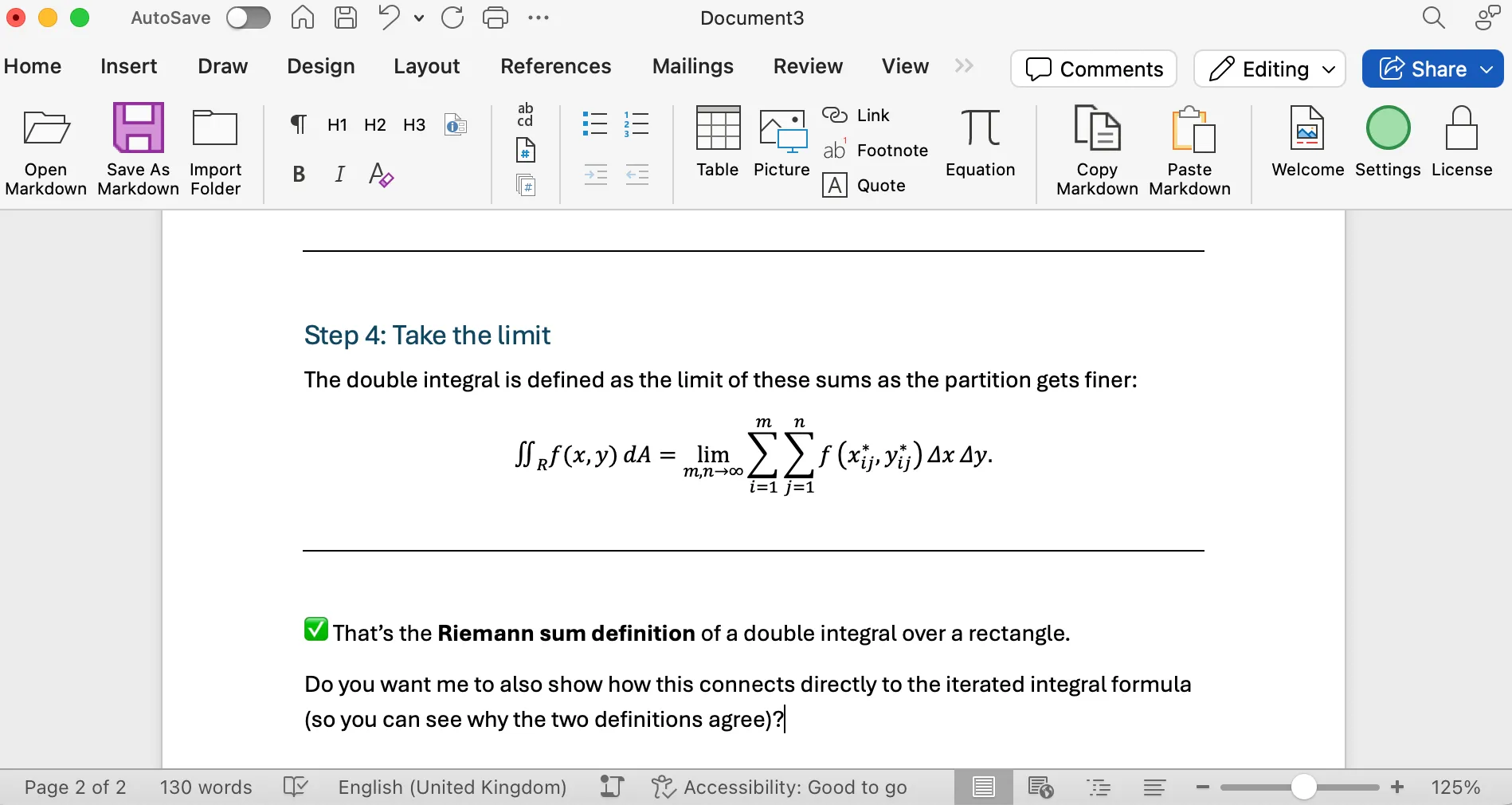
- On the Writage ribbon, click the Paste Markdown button.
- The ChatGPT response appears in your document with styles preserved.
Method 2: “Copy code” button
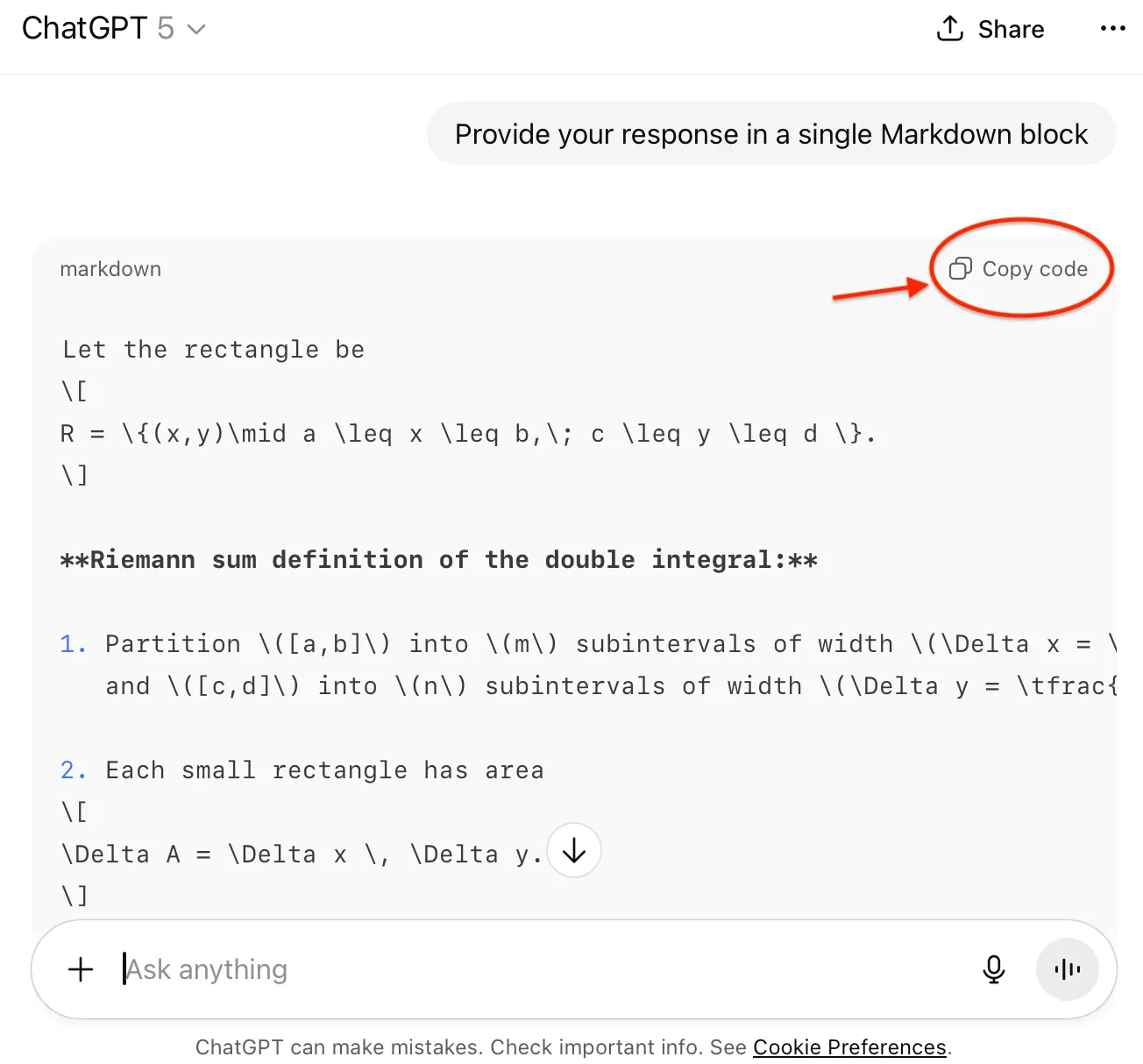
This method lets you review the raw Markdown syntax before pasting.
- In your prompt, add the phrase “Provide your response in a single Markdown block” so that ChatGPT wraps the entire response in a Markdown code fence.
- Once ChatGPT responds, review the syntax and click the Copy code button in the top-right corner of the block.
- Open your Word document (or create a new one).
- On the Writage ribbon, click the Paste Markdown button.
- The content appears in your document with all formatting applied.
Tips
- Holding Alt (Windows) or Option (macOS) when clicking ChatGPT’s Copy button gives you full Markdown source. Without it, ChatGPT copies incomplete syntax.
- Method 2 (requesting a code block) is useful when you want to review or edit the Markdown before pasting, or when ChatGPT’s formatting is inconsistent.
- See also: Using with Claude · Using with Gemini